I have always felt as though I could do it myself. In most instances, that was the end result. One of my success stories is Digital Signage. I�ve been working on it for a while and here is what I have come up with.
Digital signage/ Digital Message Boards
Digital signage has been in use for decades. In the past, its delivery was in the form of LED ticker signs and LED video walls. Digital Signage or Digital Message Boards is now in the form of an electronic display. These digital displays show content in different formats such as text, images and video. This content is displayed with the goal of delivering the content, to specific locations and/or audience at specific times.
Digital signage or narrow casting has a lot of moving parts and can be complex. although that may be the case, this document�s intent is to give you an overview project task, then give options and solutions to how to setup your own digital signage network. There is no way around the hardware investment, but we give several setup options based on your budget. That can vary from using old equipment at no cost, to a cost effective deployment of a new hardware network.
project planning
displays
installation (may require field service)
management server and/or software
network connectivity
content creation
media player
Hardware Setup
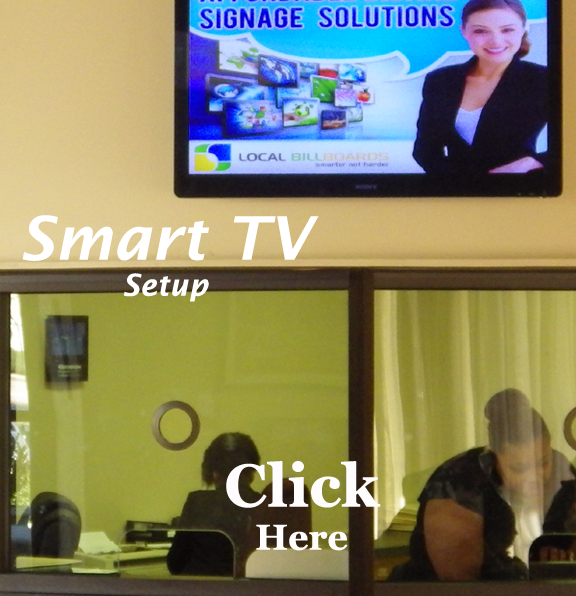
Smart TV setup
Choosing a Smart TV could be daunting but for this purpose we have tested a few. A Smart TV allows the user to browse the web and or access web content from the TV.
Here are a few devices.
Sony Internet TV � Released Oct, 2010
NSX-32GT1 32� TV
NSX-40GT1 40� TV
NSX-46GT1 46� TV
NSG-MR1 Remote
LG Smart TV - Released May 2012
47G2 47� TV
55G2 55� TV
ANMR300Q Remote
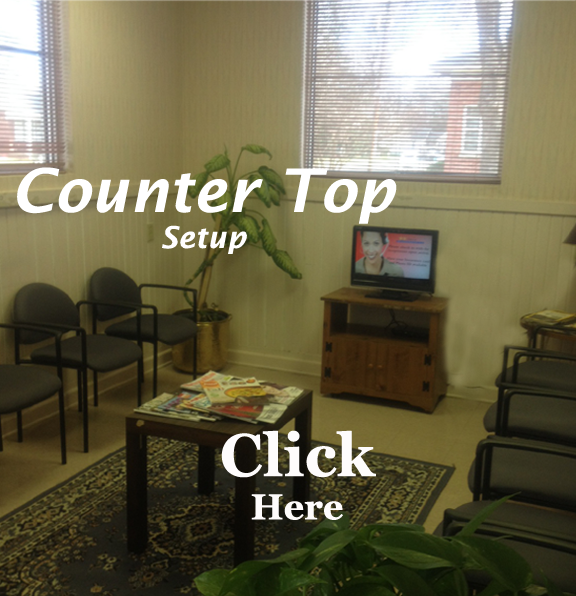
Locate and Mount the TV (choose high visible or high traffic areas)
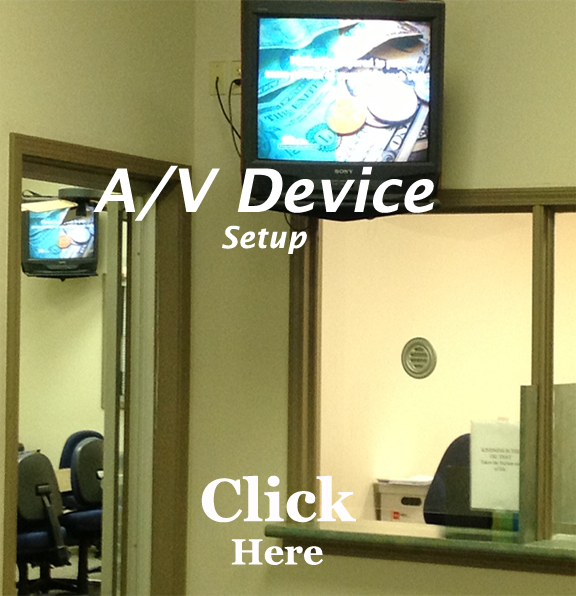
Connect the device to the TV. This can be done with a HDMI cable or RCA/composite cables. Plug cable in the device then in the TV.
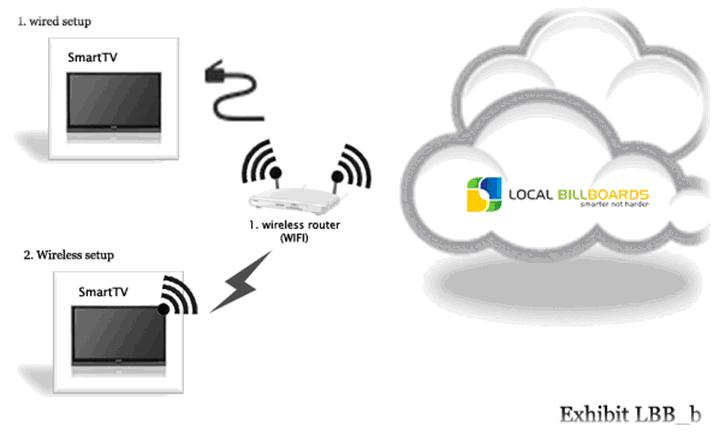
Connect the device to your network. This can be done with a Ethernet cable (more stable connection) or wireless connection(more flexible connection)
When you get ready to update content, this is done remotely from anywhere from any device (computer, tablet or mobile). Simply log into your Local BillBoards account and update your content. When you�re done, save it and just click the �Update� button. This will update all the displays in your digital display network.